
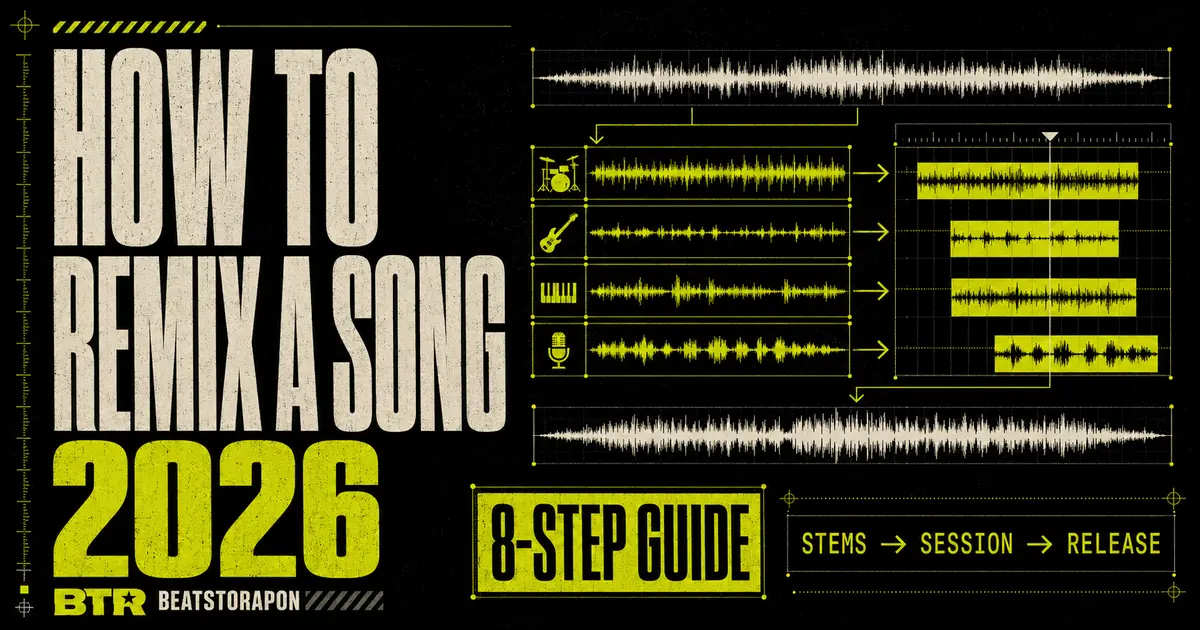
Remix workflow · stems → session → release
How to remix a song in 2026.
A complete, practical workflow for turning one finished stereo track into a new record: separate the stems, identify the key and BPM, rebuild the arrangement, repair artifacts, mix, master and handle the rights before release.
To remix a song, start with audio you own or have permission to use. Split it into vocals, drums, bass and instruments, find its tempo and key, import every stem at the same start point in your DAW, then change the groove, harmony, sound palette or arrangement enough to create a genuinely new version.
Core steps from source audio to final master
Remix, edit, mashup or cover: know the difference.
A remix takes material from an existing recording and builds a meaningfully different version around it. The source may remain recognizable, but the rhythm, structure, tempo, sound design, harmony or emotional direction changes.
The fastest way to make a weak remix is to add one drum loop under the original master and call the work finished. A strong remix has a clear creative decision: turn a slow R&B record into amapiano, rebuild a pop hook as drill, strip a dense track into a club tool, or place an isolated vocal over completely new harmony.
Remix
Reworks recognizable material into a new production, arrangement or genre.
Edit
Changes structure or length while keeping most of the original production intact.
Mashup
Combines substantial elements from two or more existing recordings.
Cover
Creates a new performance of the underlying song instead of reusing the master.
The stem is raw material. The new idea is the remix.
How to remix a song in eight steps.
This sequence works whether you use FL Studio, Ableton Live, Logic Pro, another DAW or a browser-first workflow. The tools change; the production decisions do not.
Choose
Define the source and the new direction.
Split
Extract the stems you actually need.
Analyze
Confirm tempo, key and structure.
Align
Build a clean, phase-safe DAW session.
Transform
Change groove, harmony or sound palette.
Arrange
Create tension, release and contrast.
Mix
Control bleed, clashes and dynamics.
Release
Master, export and clear the rights.
Choose the song and write a one-sentence brief
Before opening a DAW, finish this sentence: “I am turning this track into…” A 140 BPM drill version. A percussion-heavy Afrobeats version. A minimal piano remix. A festival build with the original chorus as the payoff.
The brief prevents the common mistake of collecting plugins and sounds before deciding what the remix is supposed to become. Pick one main transformation and let every later choice support it.
Separate the source into usable stems
Use a full stem splitter when you want independent control over vocals, drums, bass and instruments. Use a focused splitter when the remix revolves around one element, such as the vocal, guitar or piano.
Use the stem-selection guide below to choose the smallest useful split. More files do not automatically create a better remix.
Find the BPM, key and musical landmarks
Detect the original tempo and key, then confirm them by ear. Mark the downbeat, verse, pre-chorus, chorus, bridge and any clean one-bar or two-bar sections worth looping. A detector gives you a starting point; the grid and your ears confirm it.
Use the BTR Song Key & BPM Finder for key and tempo together, or the free BPM analyzer when tempo is the only question.
Build a clean remix session
Import every stem at the same timeline position. Keep the files at their original length, align the first downbeat and verify that all stems reconstruct the source when played together. Do this before chopping, warping or adding effects.
- Route vocals, drums, bass and music to separate buses.
- Color and label every channel immediately.
- Keep an untouched source mix on a muted reference track.
- Leave headroom; do not normalize every file to maximum level.
Make the transformation obvious
Change at least two major musical dimensions. A new drum pattern plus a new bass line is a start. Add a different tempo, key center, chord movement, sound palette or song structure and the remix develops its own identity.
If the source vocal is the hero, mute most of the original music and build around its phrasing. If a guitar or piano motif is the hero, chop it into a new rhythm instead of leaving the original arrangement running underneath.
Arrange for tension and release
Move from an eight-bar loop to a complete record. Use selective stem entry to reveal the source gradually: percussion first, then a vocal phrase, then the full hook. Contrast is more powerful than adding sound continuously.
The arrangement template below provides a practical starting structure without forcing every genre into the same formula.
Mix the new production around the source
Stem separation can leave bleed, watery high frequencies or reverb tails. Treat those as mix problems, not reasons to destroy the stem with aggressive processing. Use automation, narrow editing, EQ, expansion and masking from the new arrangement before reaching for heavy denoising.
If the extracted vocal needs repair before mixing, run it through the BTR AI Vocal Cleaner, then compare the cleaned version against the original stem at matched loudness.
Master, export and clear the release
Print a clean premaster without clipping, compare it with level-matched references and test it on headphones, monitors, a phone and a small speaker. If you need a fast second opinion, use BTR AI Mastering.
Do not distribute a remix containing someone else’s composition or master simply because the technology let you separate it. Get the appropriate permission for the intended release. The rights section below explains the distinction.
Pick the right splitter for the remix.
A full 4-stem or 6-stem split is the flexible default. A focused splitter is faster to reason about when one instrument carries the entire idea.
Modern music-source-separation systems estimate the contribution of different sources inside one mixed file. Hybrid systems can work across waveform and spectrogram information, but the output is still an estimate rather than the original studio multitrack. Dense arrangements, strong reverb, distortion and low-bitrate source files can create bleed or artifacts.
AI Stem Splitter
Separate a song into vocals, drums, bass and other instruments with the free 4-stem mode, or use a Studio mode when you need additional guitar and piano outputs. Preview the stems in the browser and download the parts you need.
Acapella or instrumentalAI Vocal Remover
Use when the lead vocal is the main sample, or when you need a vocal-free instrumental for a new performance, edit or backing track.
Riffs, chords and guitar-free mixesAI Guitar Splitter
Extract a guitar part for chopping, transcription or sound design, with focused modes for different guitar textures.
Keys, voicings and piano-free mixesAI Piano Splitter
Isolate piano or electric-piano material for reharmonization, sampling, practice and arrangement study.
Post-split vocal repairAI Vocal Cleaner
Clean noise, hiss and rough vocal material before tuning, editing or mixing the extracted vocal into the new production.
Should you choose 2, 4 or 6 stems?
| Split | Outputs | Best for | Trade-off |
|---|---|---|---|
| 2 stems | Vocals + instrumental | Karaoke, acapella work, covers and vocal-led remixes | Least control over the backing music |
| 4 stems | Vocals, drums, bass, other | Most DJ edits, beat flips and complete remixes | Guitar, piano and synths remain grouped in “other” |
| 6 stems | Vocals, drums, bass, guitar, piano, other | Detailed rearrangement and instrument-specific sampling | More files and more opportunities for bleed between similar sounds |
Practical rule: choose the fewest stems that give you the control your idea needs. Use the highest-quality source file you legitimately possess; WAV or FLAC generally preserves more information than a low-bitrate MP3.
Start with the full song.
Upload MP3, WAV, FLAC or M4A. The free BTR mode creates vocals, drums, bass and instrument stems in the browser without requiring signup.
Build an arrangement that earns the hook.
Your remix does not need a fixed length or formula. It does need movement. Every section should change the listener’s information, energy or expectation.
A flexible structure
- Intro: establish the new world without revealing everything.
- First movement: introduce the groove and one recognizable source element.
- Build or pre-drop: remove low end, shorten phrases and increase rhythmic density.
- Hook or drop: deliver the strongest combination of source material and new production.
- Contrast section: change drums, harmony, texture or vocal treatment.
- Final payoff: return with one meaningful escalation rather than a copy-paste repeat.
- Outro: create a clean ending or a DJ-friendly exit.
Create contrast with subtraction
Mute the drums for two beats before the hook. Let the isolated vocal carry one line alone. Remove the bass from the first half of a section. Filter the piano into the background, then return it at full range.
These moves work because the listener already knows the source. Your job is to control when that recognition arrives and what new context surrounds it.
Five remix directions when the session feels stuck
- Genre transfer: rebuild the groove in a different rhythmic language.
- Tempo flip: move between half-time and double-time interpretations.
- Vocal-first: keep only the acapella and write completely new harmony.
- Motif-first: chop one guitar or piano phrase into a new melodic pattern.
- Negative-space edit: remove layers and make the record more minimal.
- Live rework: replace programmed parts with performed drums, bass or keys.
Make the stems sound like one new record.
Separated stems often sound rough in solo because the model is estimating sources that overlap in the original mix. Judge them inside the remix, where the new drums, bass and arrangement can mask small imperfections naturally.
Fix the biggest problem first
/AInstrument bleed
Automate the stem off when the wanted part is silent. Edit between phrases, use a gentle expander, or let the new arrangement mask the residue.
/BWatery vocals
Use the least compressed source available. Avoid excessive high-shelf boosts; short ambience and controlled saturation can make artifacts less exposed.
/CWeak transients
Layer new drums instead of trying to force the extracted drum stem to carry the entire impact. Preserve the stem for texture and groove.
/DBass conflict
Choose whether the original bass or your new bass owns the low end. High-pass, mute or resample the losing part instead of letting both fight.
A practical remix mix order
- Balance before plugins. Pull every fader down and rebuild the level relationship from the vocal or main motif.
- Choose the low-end owner. Make the kick and bass relationship work before polishing anything else.
- Carve only proven clashes. Use EQ after identifying a conflict, not as a ritual on every channel.
- Control the source dynamically. Automate phrases, reverbs and delays so the old recording behaves inside the new arrangement.
- Use a reference at matched loudness. Compare balance, width and energy—not just volume.
- Leave mastering headroom. Avoid clipping the mix bus and export a clean premaster.
Do not solo the artifact for an hour. Fix what survives in the mix.
Bring the stems into FL Studio, Ableton or Logic.
BTR exports standard audio files, so the same separated stems can move into any modern DAW. The critical step is importing every file from the same start point before editing.
FL Studio
Drag every stem into the Playlist at bar one, place each on its own track, set the detected project tempo, then confirm the downbeat before using time stretching or chopping. FL Studio also has native four-part stem extraction through “Extract stems from sample,” but browser-separated files work like ordinary Audio Clips.
Official FL Studio Playlist manual ↗Ableton Live
Place each stem on a separate audio track, align the first downbeat and group the source tracks. Warp stems together when the remix tempo changes so they stay synchronized. Ableton’s documentation confirms that separated stems can be warped, chopped, rearranged and processed like other audio clips.
Official Ableton stem guide ↗Logic Pro
Import all stems at the same position, keep them grouped and use Smart Tempo when the source needs to follow a different project tempo. Logic Pro also includes native extraction for vocals, drums, bass, guitar, piano and other instruments on supported systems.
Official Logic Pro Stem Splitter guide ↗No DAW yet? You can still use the browser tools to preview and download stems. A DAW becomes necessary when you want to chop, rearrange, add instruments, automate effects and build a complete remix.
Being able to split a song does not mean you can release the remix.
Technology and permission are separate questions. Stem separation gives you production access; it does not transfer copyright or create a licence.
The simple release rule
If the remix uses someone else’s existing sound recording, you are reusing the master as well as material from the underlying composition. The U.S. Copyright Office identifies remixes as a form of derivative use of a sound recording and explains that the copyright owner controls the right to authorize derivative works. Laws and licensing processes differ by country, so obtain advice for the territory and release you are planning.
The lowest-risk routes are to remix your own recording, work from stems supplied with explicit remix permission, enter an official remix contest under its written rules, or use source material whose licence clearly permits derivatives and the intended commercial use.
Before you upload or distribute
- Identify the composition owner and the owner of the master recording.
- Get the agreement in writing and keep the approved terms with the project.
- Confirm where the remix may appear, for how long and in which territories.
- Confirm credits and royalty splits before the release is delivered.
- Do not assume “non-commercial” means permitted. The owner’s rights still apply.
- Check sample and platform rules independently from the audio-production workflow.
This section is general information, not legal advice. For official U.S. guidance, see the Copyright Office resources linked in the sources section.
Eight remix mistakes that make the track sound unfinished.
01No creative brief
You collect sounds without deciding what the source is becoming. Write the one-sentence transformation first.
02Wrong downbeat
The stems are aligned to the file start but not to the musical grid. Confirm bar one by ear before warping.
03Using every stem
The remix stays crowded because nothing has been replaced. Keep only the source elements that carry identity.
04Over-stretching
A dramatic tempo change exposes artifacts, especially in vocals and cymbals. Test a smaller change or resample intentionally.
05Two competing bass lines
The extracted bass and new sub occupy the same role. Choose one foundation and edit the other out.
06Loop with no journey
The strongest eight bars repeat without tension or payoff. Arrange contrast before adding more layers.
07Processing stems in solo
You spend time removing imperfections the listener cannot hear in context. Make decisions inside the full remix.
08Releasing before clearance
The production is finished but the permissions are not. Treat rights as part of the release plan, not an afterthought.
Your first move: get the parts.
Split the source into the fewest stems your idea needs, preview them in the browser and take the useful parts into your session.
How to remix a song: FAQ.
Can a beginner remix a song?
Yes. Start with one clear transformation, use an AI stem splitter to obtain the vocal or other key parts, and build a simple arrangement around them. You do not need advanced sound design to make a convincing first remix; rhythm, structure and selection matter more.
What do I need to remix a song?
You need a legitimate source file, permission for the intended use, a way to separate or obtain the stems, the song’s key and BPM, and a DAW if you want to arrange, edit, mix and export a complete new version.
Can I remix a song for free?
You can create a remix using free or existing production tools, and BTR offers a free daily 4-stem split without signup. Cost does not determine permission: distributing a remix that uses somebody else’s copyrighted recording or composition may still require authorization.
How do I get stems from a song?
Upload an MP3, WAV, FLAC or M4A file to the BTR AI Stem Splitter, choose the separation mode, preview the outputs, then download the stems you need. The standard 4-stem output is vocals, drums, bass and other instruments.
Should I use 4-stem or 6-stem separation?
Use 4 stems for most remixes and DJ edits. Choose 6 stems when you specifically need independent guitar or piano control. More stems provide more control, but they also create more files and can expose bleed between similar instruments.
Can I remix a song without FL Studio?
Yes. Ableton Live, Logic Pro and many other DAWs can arrange standard audio stems. You can also use the BTR splitter in a browser to create and preview stems before deciding which DAW to use.
Why does an isolated vocal sound watery or phasey?
The source may be heavily compressed, reverberant, stereo-widened or layered with instruments in the same frequency range. Use the highest-quality source available, avoid extreme time stretching and judge the stem inside the full remix rather than only in solo.
Can I split a song directly from a YouTube URL?
Direct YouTube URL splitting is not available in the BTR AI Stem Splitter. Upload an audio file that you own, created or have permission to use. Supported uploads include MP3, WAV, FLAC and M4A.
Can I commercially release an AI-separated remix?
You can release material built from audio you own or have properly licensed. If the remix uses somebody else’s sound recording or composition, obtain the necessary permission before commercial distribution. Stem separation does not grant rights to the source.
Are uploads used to train BTR’s models?
No. BTR states that uploads are used to generate the requested result and are not used to train its models. Free uploads are removed after processing; premium users can keep outputs in private storage.
Technical and rights sources
- Demucs Music Source Separation repository — architecture and source-separation background.
- Music Source Separation in the Waveform Domain — the Demucs research paper.
- Ableton Live 12 Reference Manual: Stem Separation.
- Apple Logic Pro User Guide: Stem Splitter.
- Image-Line FL Studio Manual: Playlist and stem extraction.
- U.S. Copyright Office Circular 14: Copyright in Derivative Works and Compilations.
- U.S. Copyright Office: Musical Works and Sound Recordings.