
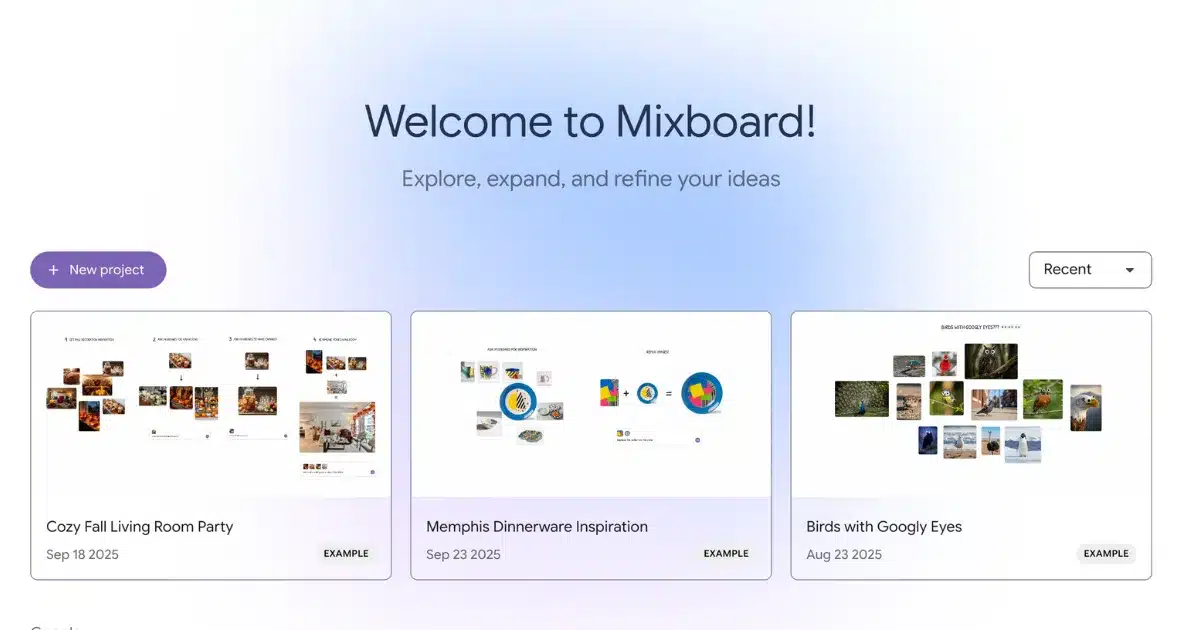
If you’re a musician, designer, or part of a creative team looking to quickly develop visual concepts for music releases, merch, or branding, this guide is for you. Google Mixboard is an experimental AI-powered concepting board that serves as an AI canvas, leveraging advanced AI tools to enhance creativity and unlock new possibilities for users. It bridges the gap between your creative ideas and actionable visual directions—without the need to open Photoshop or spend hours on moodboards. This article covers what Google Mixboard is, how it works, who it’s for, and step-by-step workflows for using it to create cover art, merch concepts, and cohesive visual worlds. Whether you’re an artist seeking inspiration or a designer aiming to streamline your process, you’ll learn how to leverage Mixboard’s AI-driven features to turn your vibe into a clear creative direction.
Mixboard is designed for independent artists, creative teams, and anyone in need of rapid visual ideation. It is accessible across multiple platforms—including desktop, tablet, and mobile devices—making it easy for teams to collaborate regardless of device or operating system.
When it comes to features, Mixboard stands out by integrating AI into the creative process from the outset, rather than treating AI as an assistant at the end. This approach empowers users to explore a wide range of creative possibilities and collaborate in real time, setting Mixboard apart from other tools.
What is Google Mixboard? (Definition, Features, and Audience)
Mixboard is an experimental AI-powered concepting board that helps users explore, expand, and refine ideas visually. Its format is visually intuitive and similar to other collaborative moodboard tools, making it easy to organize and develop ideas. It provides an open canvas for users to create projects from templates or text prompts, supports natural language editing, and integrates with various AI models to enhance the creative process. As of 2026, Mixboard functions as a dynamic canvas where users can iterate on ideas using natural language and generative AI. Mixboard is designed to be intuitive and user-friendly, making it accessible for anyone to use AI to explore their ideas and refine your ideas through collaborative and AI-powered features.
- Concepting board that helps: A workspace designed to help you explore, expand, and refine your ideas visually. Mixboard’s concepting board lets you collect, generate, and organize images, palettes, and text to develop creative directions.
- Open canvas: A flexible, dynamic space where users can start projects from scratch or templates, arrange visuals, and iterate freely. As of 2026, Mixboard functions as a dynamic canvas where users can iterate on ideas using natural language and generative AI.
- Natural language editing: The ability to make changes, combine images, or generate new visuals using plain English prompts, making the creative process more intuitive and accessible.
Mixboard is ideal for musicians, designers, creative teams, and anyone who needs to quickly visualize and iterate on ideas for music releases, merch, branding, or content themes.
Summary: What is Google Mixboard, What Does It Do, and How Can I Use It?
Google Mixboard is an experimental AI-powered concepting board available as a free public beta through Google Labs in many countries. Mixboard enables real-time visual co-creation, allowing teams to visualize abstract concepts together, similar to collaborative whiteboards like Miro. It helps users explore, expand, and refine ideas visually by providing an open canvas, supporting natural language editing, and integrating with various AI models for creative collaboration. Users can generate visuals and related elements (like color palettes and sample text) based on prompts, iterate on ideas using natural language, and collaborate in real time. Mixboard facilitates real-time collaboration among team members regardless of their geographical location, and is accessible in all countries and regions. Mixboard is designed to be intuitive and user-friendly, making it accessible for anyone to use AI to explore their ideas.
What is Google Mixboard (and what it isn’t)
Mixboard is a Google Labs experiment: an AI-powered concepting board designed to help you “explore, expand and refine ideas.” Mixboard is an AI-powered moodboard builder that uses generative AI and Gemini, Google’s foundational AI model, to help users create and refine visual concepts. The Nano Banana AI Engine is also integrated, allowing for targeted changes and high-fidelity visual upgrades based on conversational prompts. (Official Mixboard page: https://labs.google.com/mixboard/welcome)
Key Terms:
- Concepting board: A workspace for visually exploring, expanding, and refining ideas. Mixboard’s board lets you collect, generate, and organize images, palettes, and text to develop creative directions.
- Open canvas: A flexible, dynamic space where users can start projects from scratch or templates, arrange visuals, and iterate freely.
- Natural language editing: The ability to make changes, combine images, or generate new visuals using plain English prompts, making the creative process more intuitive and accessible.
How Mixboard Works:
- Build a board on an open canvas.
- Add inspiration images (your own, references, textures, photos).
- Import your own images or AI-generated visuals, including those from external sources, to customize and enhance your board.
- Generate new visuals to match your direction.
- Edit, merge, and iterate using plain English.
- Produce a clearer creative direction you can hand off to Canva/Photoshop/Illustrator or a designer.
Mixboard is designed to be intuitive, featuring a drag-and-drop interface for visual collaboration, and is accessible across devices. It is primarily used for home decor, event planning, branding, and product concepting, but is especially powerful for music and merch visual development.
What it isn’t: Mixboard is not a full replacement for final production design tools. It excels at concept exploration—quickly getting you to “this is the direction” with enough visual proof to execute cleanly elsewhere.
How Mixboard Works (The Core Mechanics)
Google’s own description of Mixboard’s workflow is straightforward. Every new project starts with a blank canvas, ready for creative exploration. The process is simple and intuitive, allowing anyone to easily begin a new project and collaborate visually.
Mixboard is available for public beta testing in the U.S. and aims to make creative collaboration accessible to everyone.
Core Steps
- Start a new project from a text prompt—using natural language input to quickly generate and customize your board—or pick from pre-populated boards.
- Add your own images or generate unique visuals with AI.
- Edit using natural language (make small changes, combine images, etc.) powered by Google’s image editing model.
- Create variations with one-click options like “regenerate” and “more like this.”
- Generate text based on the context of images already on your board.
The key advantage is speed: you’re not doing perfect design—you’re rapidly discovering what works. The ‘Transform’ feature can convert a brainstorming board into a structured presentation deck with one click.
What You’ll See When You Open It
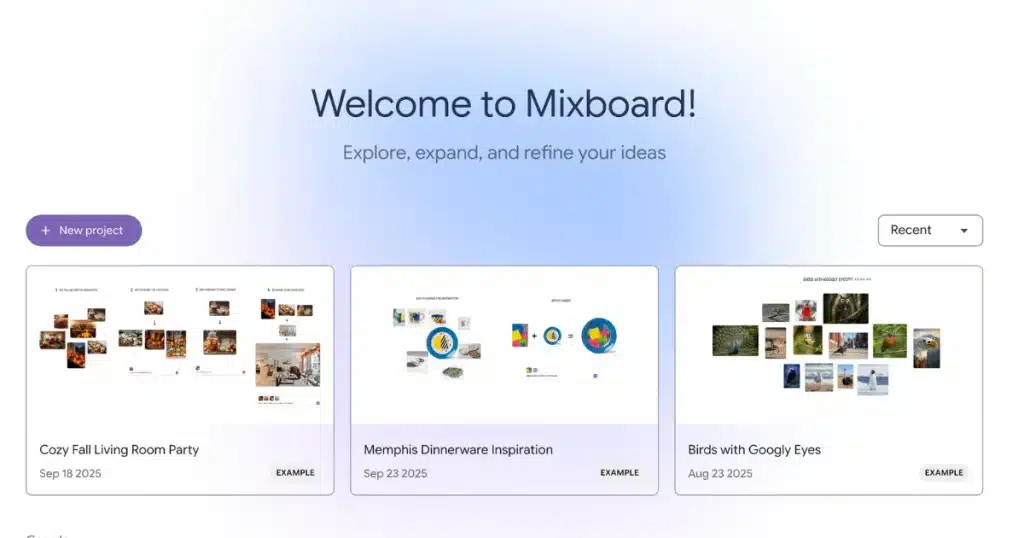
- On the Projects screen, Mixboard is set up around projects/boards.
- Hit New project to choose from templates or start from scratch.
- Each project becomes a “space” where you explore a concept across multiple images and notes.
Practical takeaway: Treat each project as a “creative direction,” not a single finished design.
Transition: Now that you understand the core mechanics, let’s see how Mixboard can be applied to real creative workflows.
Why This Matters for Cover Art + Merch (Especially in Rap/Hip-Hop/Trap)
Great visuals don’t come from “making something cool.” They come from consistency:
- Repeatable palette
- Recognizable typography vibe
- Strong iconography/symbol language
- Photo treatment rules (grain, contrast, flash, chromatic blur, etc.)
- Motif choices (street signage, neon, chrome, paper texture, stamped ink, etc.)
Mixboard helps you build that system quickly because it keeps everything on one canvas and lets you iterate until the direction “clicks,” instead of polishing one bad idea for six hours.
Transition: With the importance of visual consistency in mind, let’s dive into practical workflows for using Mixboard.
Workflow 1: Build a Cover-Art Direction in 20 Minutes
Step A: Start with a Creative Brief Prompt
Use a prompt that describes the cover like a designer would:
- Genre + sub-genre
- Emotion
- Visual era
- Palette
- Composition
- Materials/textures
- Do/Don’t
Example prompt template:
“Album cover concept for a gritty underground rap EP. Mood: tense, nocturnal, cinematic. Palette: deep blacks, desaturated reds, sodium-vapor yellows. Composition: centered subject, heavy negative space for typography. Texture: film grain, paper scuffs, street flyer collage. Avoid cartoon style.”
Then generate a starting set.
Step B: Pin the Winners and Force the Board to Commit
- Pick 3–6 images that feel closest.
- Move them into a row labeled:
- Direction A: Street-collage
- Direction B: Cinematic portrait
- Direction C: Minimal icon
Now Mixboard has context—and you can push it.
Step C: Iterate with Edits That Change One Variable at a Time
- “Make it darker and higher contrast”
- “More 90s flash photography”
- “Replace the background with torn paper collage”
- “Keep the subject, but change palette to icy blues + chrome”
- “More negative space for title at the top”
Mixboard supports natural-language edits and image combinations.
Step D: Generate Typography Ideas (Even If You’ll Rebuild Them Later)
Use Mixboard to explore:
- Title placement
- Taglines
- Sticker text (“Parental Advisory”-style motifs, tour stamp vibes, catalog numbers)
- Short “world building” phrases
Even if you recreate the typography later in a design app, this step locks in layout logic.
Transition: Once you have a cover-art direction, you can use Mixboard to develop merch concepts that actually sell.
Workflow 2: Turn the Cover Direction into Merch Concepts That Actually Sell
Why Most Merch Fails
Most merch fails because it’s just the cover slapped on a shirt. Instead, merch needs:
- 1 hero graphic (recognizable at 2 meters)
- 1 secondary graphic (back print or sleeve)
- 1 small mark (chest hit)
- 1 text system (tour dates, slogans, coordinates, catalog codes)
Step A: Use Mixboard to Explore “Merch-First” Graphics
Start a new section on your board:
Merch translation rules:
- Simplify the cover into 1–2 shapes
- Convert photo texture into linework / halftone / stencil
- Pull 2–3 repeatable motifs
Prompts that work well:
- “Create a bold one-color icon inspired by this moodboard, suitable for screen printing”
- “Turn this concept into a halftone portrait graphic”
- “Design a back-print layout with stamp text blocks and a central symbol”
- “More like this, but simpler shapes and higher contrast”
Then create three merch lanes:
- Streetwear minimal
- Aggressive graphic
- Vintage bootleg
Step B: Print Reality Check
When you find a graphic direction, sanity-check it:
- Does it still read as a concept in one color?
- Does it still work at chest-logo size?
- Can it be produced as screen print or DTG without turning into mud?
Transition: With your cover and merch directions set, you can use Mixboard to build a cohesive visual world for your entire release.
Workflow 3: Build a Whole Release “Visual World” (Covers, Story Posts, Flyers)
Why Consistency Wins
Artists can outclass bigger budgets with consistency across assets.
Step A: Build Zones on One Mixboard Project
- Cover direction
- Merch direction
- Promo templates
- Tour/flyer layout
- Brand kit (palette + textures + motifs)
Because Mixboard can generate images and text in-context on the same board, you can keep everything aligned instead of reinventing your visuals every time.
Transition: Now that you know how to use Mixboard for different creative needs, let’s look at what it’s best at—and what to watch out for.
What Mixboard Is Best At (and What to Watch Out For)
Best At
- Quick ideation from prompt to visuals
- Exploring multiple directions without losing the thread
- Iterating via natural language edits and recombination
- Helping non-designers communicate a direction to designers
Watch-Outs
- It’s an experiment (features and availability can change)
- Don’t confuse “cool concept” with “print-ready asset”
- Don’t copy other artists’ recognizable branding—use references ethically
Transition: To make the most of Mixboard, here’s a repeatable system you can use for every release.
A “60-Minute” System You Can Repeat for Every Release
Step-by-Step Breakdown
- 0–10 min: Prompt + generate 20–40 options
- 10–25 min: Curate 6 winners into 3 directions
- 25–40 min: Iterate each direction with one-variable edits
- 40–55 min: Translate best direction into merch-style graphics
- 55–60 min: Write a 5-line creative brief your designer can execute
That last line is the cheat code: Mixboard outputs clarity, not final art.
Transition: Whether you’re a musician or a designer, Mixboard can fit into your workflow—here’s how.
How Musicians Can Use Mixboard (Even If You’re Not a Designer)
Mixboard is best used as your “visual translator”: you bring the vibe, the references, the story — and Mixboard helps you produce 3–5 clear directions you can execute (or hand off) without guessing.
The 20-Minute “Artist Sprint”
- Write your release in visuals (not feelings). Use this template as your starting prompt:
- Genre + era: (e.g., underground rap, 90s bootleg flyer energy)
- Mood: (tense / victorious / paranoid / romantic / cold)
- Palette: (3–5 colors)
- Textures: (film grain / torn paper / chrome / street signage / ink stamps)
- Composition: (centered portrait / minimal icon / collage)
- Don’t: (no cartoon, no clean corporate look, no bright pastels)
- Pin 3 winners, then force three directions.
- Make three labeled rows: A / B / C.
- Aim for consistency systems (palette, motifs, typography vibe)—not just one “cool image.”
- Iterate using “one variable” edits.
- “Keep the subject, change palette to icy blues + chrome”
- “More negative space at top for title”
- “Turn into torn-paper flyer collage with heavy grain”
Mixboard supports natural-language edits and quick regeneration/variation.
What You Should Output as a Musician
At the end of your Mixboard session, you want deliverables you can hand to Canva/Photoshop or a designer:
- 1 chosen direction (your “final” lane)
- 3 supporting references (the images that define it)
- A 6-line creative brief:
- Palette rules
- Texture rules
- Typography vibe (bold condensed / serif luxury / stencil / handwritten)
- Motif list (2–3 repeatables)
- Layout rule (where title goes + negative space rule)
- “Avoid” list
That’s what stops you from re-inventing the visuals every release.
Transition: Designers can also use Mixboard to move faster and deliver better work—here’s how.
How Music/Cover Designers Can Use Mixboard (To Move Faster and Sell Better Work)
Mixboard is not a replacement for your craft—it’s a client-alignment machine. You can explore directions fast, then present a board that makes approval easy, because the client can see the system (palette, textures, motifs, layout rules) instead of arguing about “vibes.”
Designer Workflow: Concept Board → Approved Direction → Production Build
- Turn the client’s messy taste into 3 clean lanes.
- Lane A: “street-collage / bootleg flyer”
- Lane B: “cinematic portrait / poster”
- Lane C: “minimal icon / luxury restraint”
- Use Mixboard to generate “proof”, then define rules.
- Translate visuals into a repeatable system (palette, icon language, photo treatment, texture rules).
- Merch-first exploration (so it doesn’t die on a T-shirt).
- “Simplify to one-color icon suitable for screen print”
- “Convert to halftone / stencil”
- “Back print layout with stamp blocks + central symbol”
How Designers Can Package This as a Paid Service
Offer it as a “Visual World Build” (fast, high value, easy to sell):
- 3 concept lanes (board)
- 1 chosen direction
- Cover layout wireframe
- Merch translation concepts (icon + back print + chest hit)
- Mini brand kit: palette + textures + motif list
It shortens revisions, boosts confidence, and makes clients feel like they’re buying a world, not “a PNG.”
FAQ
Is Mixboard free?
- Mixboard is positioned as a Google Labs experiment; availability and terms can change. Check the official page for current access: https://labs.google.com/mixboard/welcome
Can it replace Canva or Photoshop?
- No. Mixboard is a concepting board—best for ideation and direction-setting.
What makes Mixboard different from a normal moodboard?
- It can generate and remix visuals, apply natural-language edits, create variations (“regenerate,” “more like this”), and generate text based on board context.
Is it available outside the U.S.?
- Google’s launch post described it as a U.S. public beta at the time; availability may vary.
What’s the best way to use it for music branding?
- Use it to lock a repeatable visual system (palette, texture, typography vibe, motifs), then execute finals in your design tool or with a designer.